Results
- Manage MyMachines /Remote
- Introduction
- Security instructions
- System requirements
- Setting up the SINUMERIK control system for Manage MyMachines /Remote
- Integrating Insights Hub
- Working with Manage MyMachines /Remote
- Open Manage MyMachines /Remote
- Machine Configuration
- Download remote service client
- Download certificate
- Remote sessions
- Service Dashboard
- Using the calendar function
- Setting up Manage MyMachines /Remote Service Client
- Using MyMachines /Remote Service Client
- Overview of the functions
- User roles and operator interface
- Joining a remote session as MO (PCU/NCU)
- Joining a remote session as MO (IPC)
- Conducting a remote session via VPN (IPC)
- Desktop sharing (SINUMERIK Integrate Client)
- Desktop sharing (IPC / PCU)
- Transferring files
- Remote STEP 7
- Transferring the conference leadership
- Terminating the remote session
- Additional functions
- Using Manage MyMachines /Remote Interactive mobile app
- Disconnecting a SINUMERIK control from Insights Hub
- Troubleshooting when onboarding
- SINUMERIK controls
- Preconditions
- Checking the network configuration
- Checking that SINUMERIK Integrate has been enabled
- Checking that SINUMERIK Integrate has been activated
- Checking proxy settings
- Checking the SINUMERIK Integrate URL
- Checking the network connection
- Checking directory "boot_job"
- Checking the asset type in Insights Hub
- Checking the existence of onboard.key
- Resolving known faults
- More information
- Preconditions
- SINUMERIK controls
- Secure product disposal
- Appendix
- Introduction
- Security instructions
- System requirements
- Setting up the SINUMERIK control system for Manage MyMachines /Remote
- Integrating Insights Hub
- Working with Manage MyMachines /Remote
- Open Manage MyMachines /Remote
- Machine Configuration
- Download remote service client
- Download certificate
- Remote sessions
- Service Dashboard
- Using the calendar function
- Setting up Manage MyMachines /Remote Service Client
- Using MyMachines /Remote Service Client
- Overview of the functions
- User roles and operator interface
- Joining a remote session as MO (PCU/NCU)
- Joining a remote session as MO (IPC)
- Conducting a remote session via VPN (IPC)
- Desktop sharing (SINUMERIK Integrate Client)
- Desktop sharing (IPC / PCU)
- Transferring files
- Remote STEP 7
- Transferring the conference leadership
- Terminating the remote session
- Additional functions
- Using Manage MyMachines /Remote Interactive mobile app
- Disconnecting a SINUMERIK control from Insights Hub
- Troubleshooting when onboarding
- SINUMERIK controls
- Preconditions
- Checking the network configuration
- Checking that SINUMERIK Integrate has been enabled
- Checking that SINUMERIK Integrate has been activated
- Checking proxy settings
- Checking the SINUMERIK Integrate URL
- Checking the network connection
- Checking directory "boot_job"
- Checking the asset type in Insights Hub
- Checking the existence of onboard.key
- Resolving known faults
- More information
- Preconditions
- SINUMERIK controls
- Secure product disposal
- Appendix
Logging in to Insights Hub
Precondition
You require a MindAccess user account in Insights Hub.
More information on creating an account can be found at:
-
"Insights Hub - Settings System Manual"
-
"Insights Hub - Asset Manager System Manual"
Procedure
-
Click the link provided by email from Siemens AG.
The website is displayed: https://<tenant-Name>.eu1.mindsphere.io
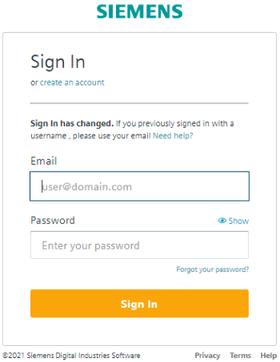
The "Sign In" window opens.
-
Enter your e-mail address and your password.
-
Click on "Sign In".
- OR -
If you have forgotten your password, click "Forgot Password?".
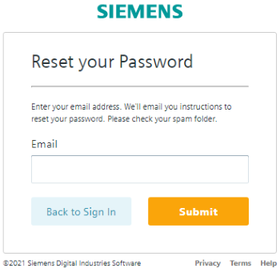
The "Reset your Password" window opens.
Enter your e-mail address and click the "Submit" button.
Your password is reset and you are informed of this via e-mail. -
Click on "Back to Sign In".
-
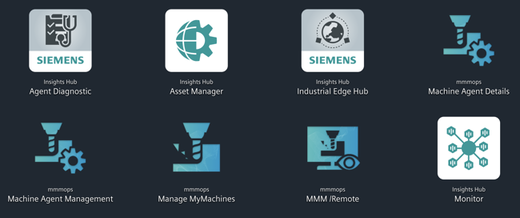
The launch pad opens. You can access the individual applications via this user interface.
Chap. 5.1