- Manage MyMachines /Remote
- Introduction
- Security instructions
- System requirements
- Setting up the SINUMERIK control system for Manage MyMachines /Remote
- Integrating Insights Hub
- Working with Manage MyMachines /Remote
- Open Manage MyMachines /Remote
- Machine Configuration
- Download remote service client
- Download certificate
- Remote sessions
- Service Dashboard
- Sustainability report
- Using the calendar function
- Setting up Manage MyMachines /Remote Service Client
- Using MyMachines /Remote Service Client
- Overview of the functions
- User roles and operator interface
- Joining a remote session as MO (PCU/NCU)
- Joining a remote session as MO (IPC)
- Conducting a remote session via VPN (IPC)
- Desktop sharing (SINUMERIK Integrate Client)
- Desktop sharing (IPC / PCU)
- Transferring files
- Remote STEP 7
- Transferring the conference leadership
- Terminating the remote session
- Additional functions
- Manage MyMachines /Remote Interactive Mobile App
- Disconnecting a SINUMERIK control from Insights Hub
- Troubleshooting when onboarding
- SINUMERIK controls
- Preconditions
- Checking the network configuration
- Checking that SINUMERIK Integrate has been enabled
- Checking that SINUMERIK Integrate has been activated
- Checking proxy settings
- Checking the SINUMERIK Integrate URL
- Checking the network connection
- Checking directory "boot_job"
- Checking the asset type in Insights Hub
- Checking the existence of onboard.key
- Resolving known faults
- More information
- Preconditions
- SINUMERIK controls
- Secure product disposal
- Appendix
- Introduction
- Security instructions
- System requirements
- Setting up the SINUMERIK control system for Manage MyMachines /Remote
- Integrating Insights Hub
- Working with Manage MyMachines /Remote
- Open Manage MyMachines /Remote
- Machine Configuration
- Download remote service client
- Download certificate
- Remote sessions
- Service Dashboard
- Sustainability report
- Using the calendar function
- Setting up Manage MyMachines /Remote Service Client
- Using MyMachines /Remote Service Client
- Overview of the functions
- User roles and operator interface
- Joining a remote session as MO (PCU/NCU)
- Joining a remote session as MO (IPC)
- Conducting a remote session via VPN (IPC)
- Desktop sharing (SINUMERIK Integrate Client)
- Desktop sharing (IPC / PCU)
- Transferring files
- Remote STEP 7
- Transferring the conference leadership
- Terminating the remote session
- Additional functions
- Manage MyMachines /Remote Interactive Mobile App
- Disconnecting a SINUMERIK control from Insights Hub
- Troubleshooting when onboarding
- SINUMERIK controls
- Preconditions
- Checking the network configuration
- Checking that SINUMERIK Integrate has been enabled
- Checking that SINUMERIK Integrate has been activated
- Checking proxy settings
- Checking the SINUMERIK Integrate URL
- Checking the network connection
- Checking directory "boot_job"
- Checking the asset type in Insights Hub
- Checking the existence of onboard.key
- Resolving known faults
- More information
- Preconditions
- SINUMERIK controls
- Secure product disposal
- Appendix
Client update under Windows
Requirement
The SINUMERIK Integrate client update required "setup.exe" was transferred into the installation directory.
Procedure
-
Start the SINUMERIK control system in the Windows service mode.
-
Open the installation directory.
-
Start setup file "setup.exe" with a double-click.
SINUMERIK Integrate Client - InstallShield Wizard opens.
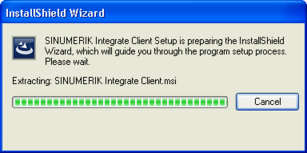
-
The welcome screen opens and shows the applications to which the update applies.
Click "Next >" to start the installation preparation.
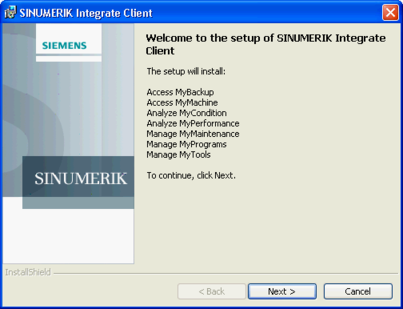
-
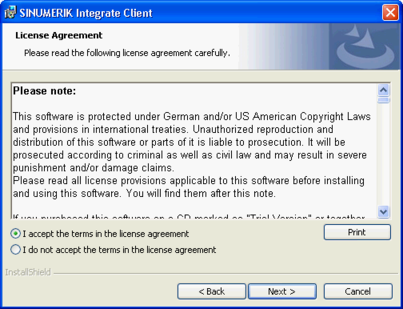
The "License Agreement" window opens.
Read the license agreement.-
If you want to print the terms, click "Print."
-
Then activate the "I accept the terms in the license agreement" checkbox and click "Next >".
- OR -
Click "< Back" to return to the previous window.
-
-
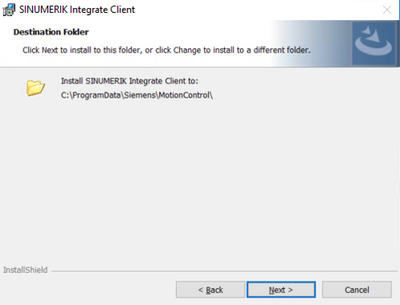
The next window displays the installation directory for the application.
Click "Next >" to accept the directory suggested by the setup.
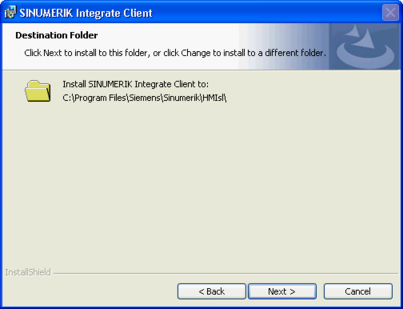
The default path for installing the SINUMERIK Integrate client is identical for SINUMERIK One. The screens displayed are different:
-
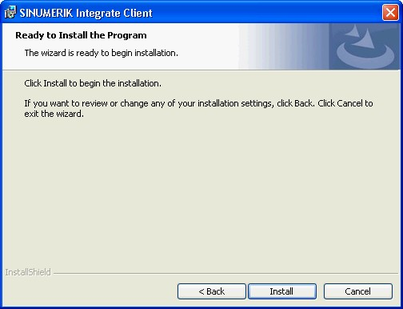
The Wizard is ready to start the installation.
Click "Install" to start the installation.
-
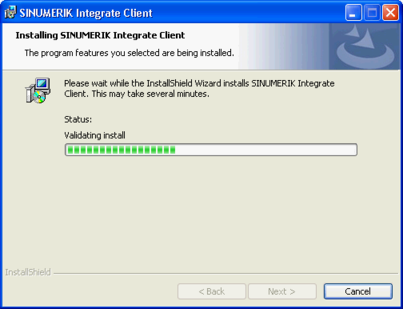
The installation is started, and the progress is displayed with a progress bar.
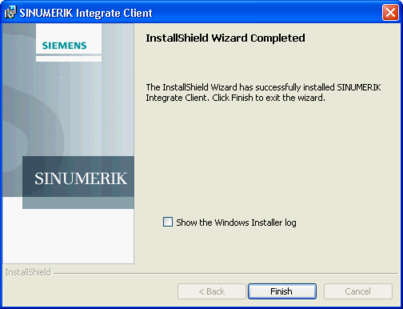
-
Click "Finish" to complete the installation.