- Manage MyMachines /Remote
- Introduction
- Security instructions
- System requirements
- Setting up the SINUMERIK control system for Manage MyMachines /Remote
- Integrating Insights Hub
- Working with Manage MyMachines /Remote
- Open Manage MyMachines /Remote
- Machine Configuration
- Download remote service client
- Download certificate
- Remote sessions
- Service Dashboard
- Sustainability report
- Using the calendar function
- Setting up Manage MyMachines /Remote Service Client
- Using MyMachines /Remote Service Client
- Overview of the functions
- User roles and operator interface
- Joining a remote session as MO (PCU/NCU)
- Joining a remote session as MO (IPC)
- Conducting a remote session via VPN (IPC)
- Desktop sharing (SINUMERIK Integrate Client)
- Desktop sharing (IPC / PCU)
- Transferring files
- Remote STEP 7
- Transferring the conference leadership
- Terminating the remote session
- Additional functions
- Manage MyMachines /Remote Interactive Mobile App
- Disconnecting a SINUMERIK control from Insights Hub
- Troubleshooting when onboarding
- SINUMERIK controls
- Preconditions
- Checking the network configuration
- Checking that SINUMERIK Integrate has been enabled
- Checking that SINUMERIK Integrate has been activated
- Checking proxy settings
- Checking the SINUMERIK Integrate URL
- Checking the network connection
- Checking directory "boot_job"
- Checking the asset type in Insights Hub
- Checking the existence of onboard.key
- Resolving known faults
- More information
- Preconditions
- SINUMERIK controls
- Secure product disposal
- Appendix
- Introduction
- Security instructions
- System requirements
- Setting up the SINUMERIK control system for Manage MyMachines /Remote
- Integrating Insights Hub
- Working with Manage MyMachines /Remote
- Open Manage MyMachines /Remote
- Machine Configuration
- Download remote service client
- Download certificate
- Remote sessions
- Service Dashboard
- Sustainability report
- Using the calendar function
- Setting up Manage MyMachines /Remote Service Client
- Using MyMachines /Remote Service Client
- Overview of the functions
- User roles and operator interface
- Joining a remote session as MO (PCU/NCU)
- Joining a remote session as MO (IPC)
- Conducting a remote session via VPN (IPC)
- Desktop sharing (SINUMERIK Integrate Client)
- Desktop sharing (IPC / PCU)
- Transferring files
- Remote STEP 7
- Transferring the conference leadership
- Terminating the remote session
- Additional functions
- Manage MyMachines /Remote Interactive Mobile App
- Disconnecting a SINUMERIK control from Insights Hub
- Troubleshooting when onboarding
- SINUMERIK controls
- Preconditions
- Checking the network configuration
- Checking that SINUMERIK Integrate has been enabled
- Checking that SINUMERIK Integrate has been activated
- Checking proxy settings
- Checking the SINUMERIK Integrate URL
- Checking the network connection
- Checking directory "boot_job"
- Checking the asset type in Insights Hub
- Checking the existence of onboard.key
- Resolving known faults
- More information
- Preconditions
- SINUMERIK controls
- Secure product disposal
- Appendix
Exchanging a certificate (optional)
In order to achieve comprehensive security, it is necessary to update the certificate "cacert.pem". The following manual steps are required for this purpose.
NOTE
For previous versions, the certificate in the cacerts.pem file is still valid.
No update is required for these clients.
Please check the SINUMERIK Integrate Client version before performing a certificate update.
SINUMERIK Operate with SINUMERIK Integrate client under Linux
-
Open the directory: card/addon/sinumerik/hmi/sinintclient/cfg
-
Select "cacerts.pem".
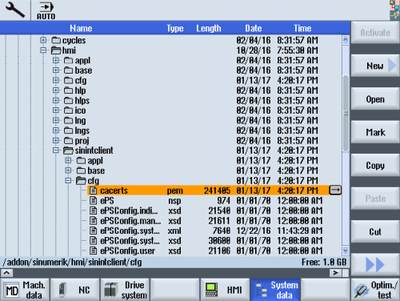
-
Use WinSCP, for example, to open "cacerts.pem" in the editor.
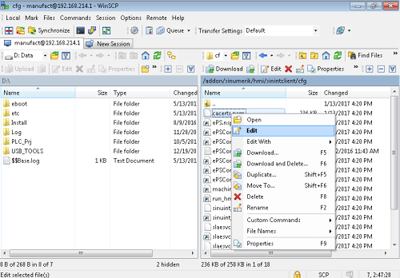
-
Insert the content of "Customer Root CA" at the end of "cacerts.pem".
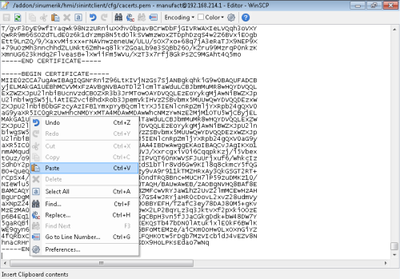
-
Close the file to save the certificate.
-
Perform a restart.
SINUMERIK Operate under Windows
-
Open the "Customer Root CA" file in the editor and copy the entire content to the clipboard.
-
Use WinSCP, for example, to open "cacerts.pem" in the editor.
C:\ProgramData\Siemens\MotionControl\addon\sinumerik\hmi\sinintclient\cfg\cacerts.pem
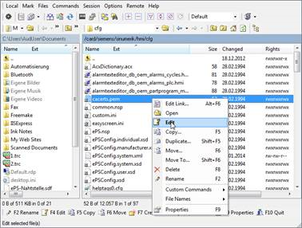
-
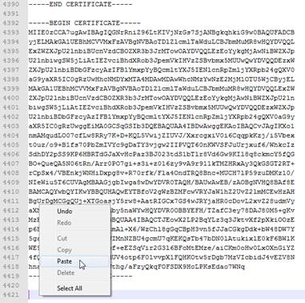
Insert the content of "Customer Root CA" at the end of "cacerts.pem".
-
Close the file to save the certificate.
-
Store the adapted file in the same directory again:
C:\ProgramData\Siemens\MotionControl\addon\sinumerik\hmi\sinintclient\cfg -
Perform a restart.
NOTE
On SINUMERIK devices with Integrate Clients, versions exists with expired QuoVadis intermediate certificate signatures. This certificate expired on November 06, 2022. Checking the validity of this certificate leads to an immediate connection abort or failure of onboarding in the SINUMERIK Integrate Client. This prevents remote access sessions from occurring.
Due to the expiry of the QuoVadis Global SSL ICA G3 certificate, the connection to the machine is terminated if the following SINUMERIK Integrate Client versions are involved:
02.00.19 / 02.00.20 / 02.00.21
03.00.19 / 03.00.20 / 03.00.21
04.00.19 / 04.00.20 / 04.00.21
This only applies to the SINUMERIK ONE, SINUMERIK 840D sl, and SINUMERIK 828D Operate controls.
The SINUMERIK 840 D PL is not affected.